How can I generate shipping labels in my admin account?
Before trying to generate shipping labels, make sure you have added a shipping location to your admin account.
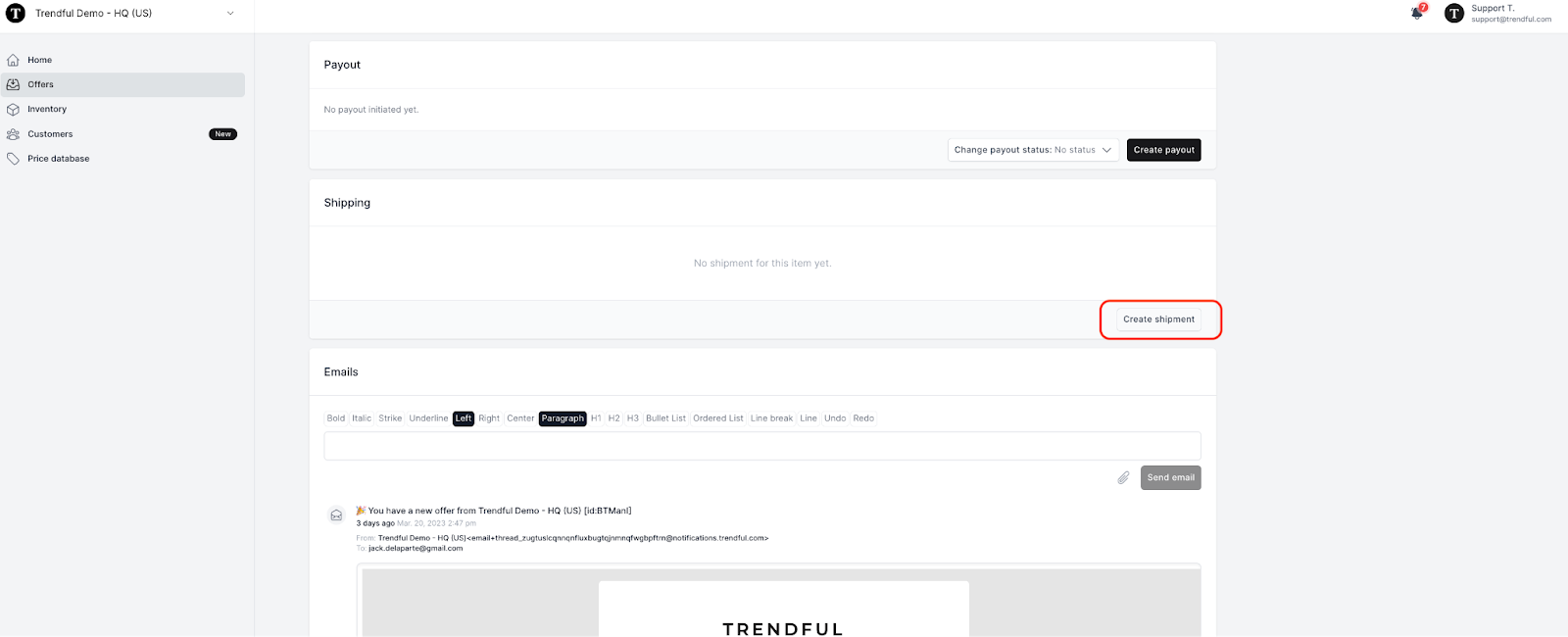
When you click on an offer scroll down to the shipping section and click “Create shipment” (see image example below)
Once you click “Create shipment”, a window will pop up (see the image below)
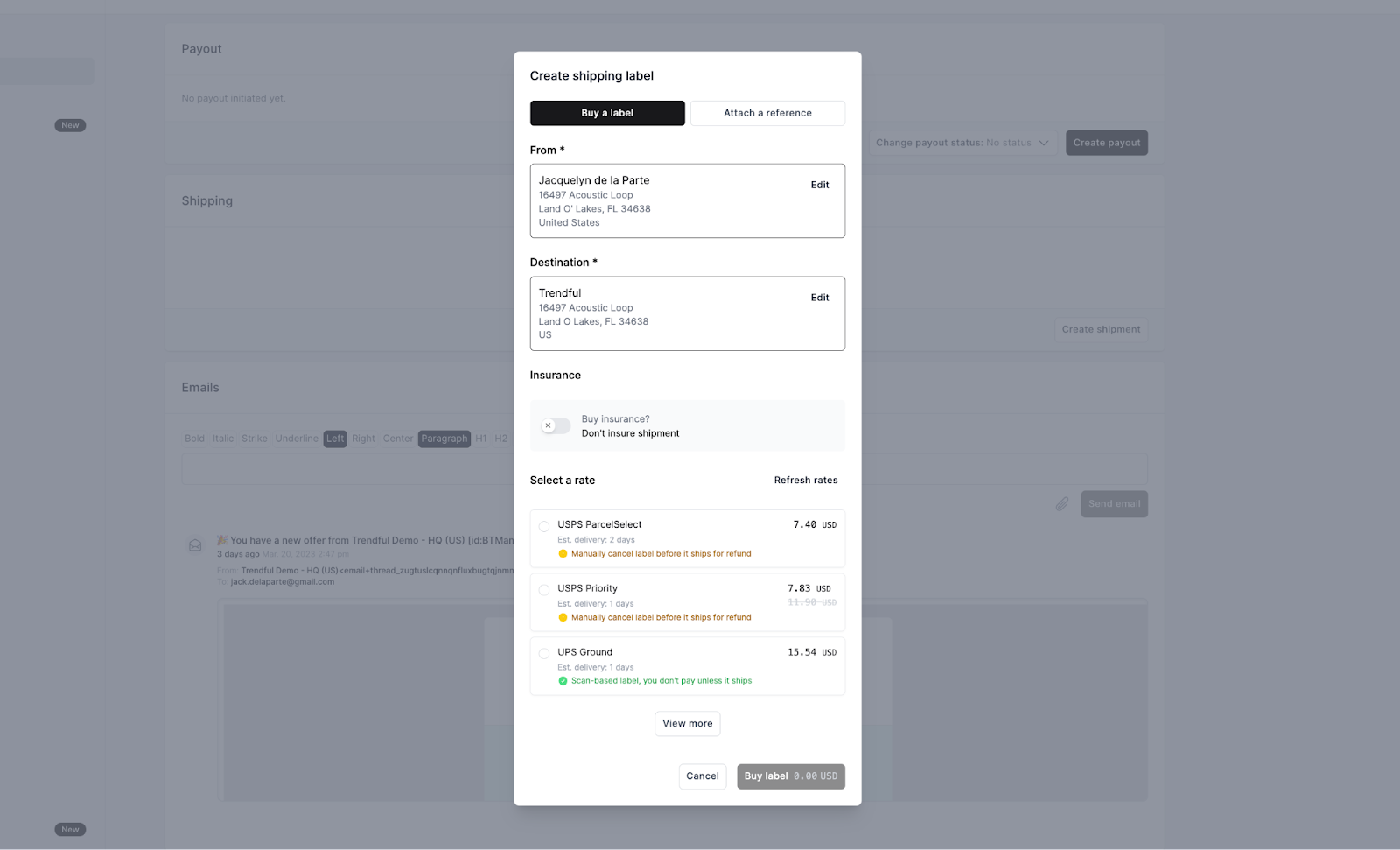
From here you can:
- Edit the location of your customer's address or your receiving address
- Select additional items to include in the shipment. Select additional items to include in the shipment. Please note that you can only include accepted offers that aren't already associated with a shipment, even if the shipment was cancelled.
- Select the package size
- Toggle on shipping insurance (calculated at 1% of the resale estimate or accepted offer amount)
- Select a shipping carrier and rate
Once you have selected the package size and rate you would like to buy, simply click “Buy label”.
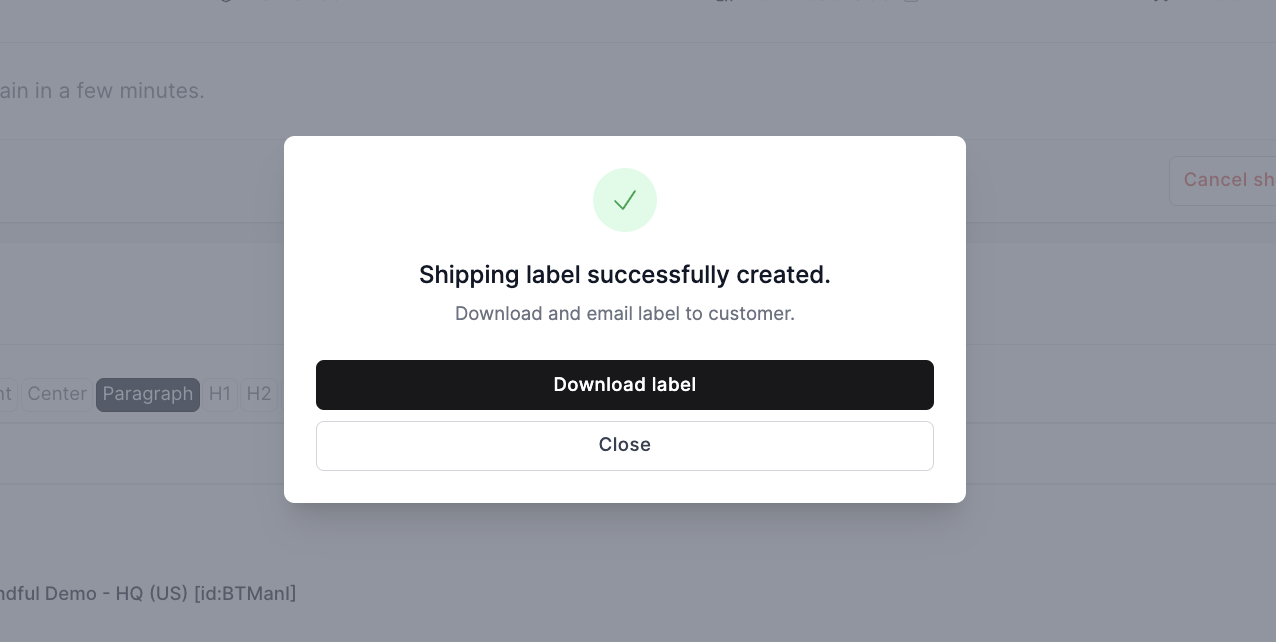
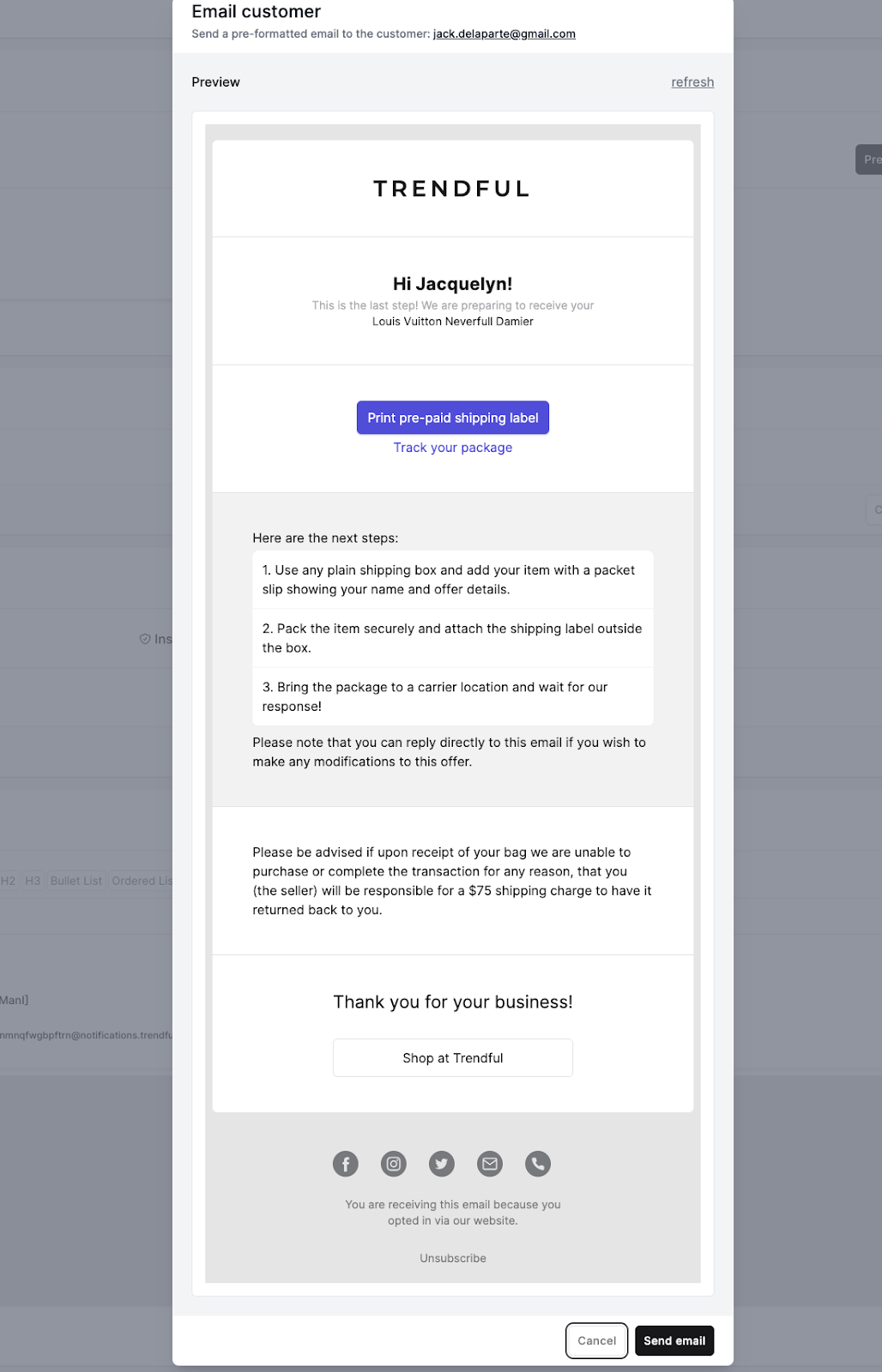
You can either choose to download the label and send your own email with the label to your customer or you can send our customizable shipping email with the label to your customer (see image example below).
More about Offer Management System
Still stuck? Get in touch or browse all 144 answers.