How do I import products?
Importing products is available to everyone with Inventory (an add-on on the Launch and Pro plans, included on the Enterprise plan).
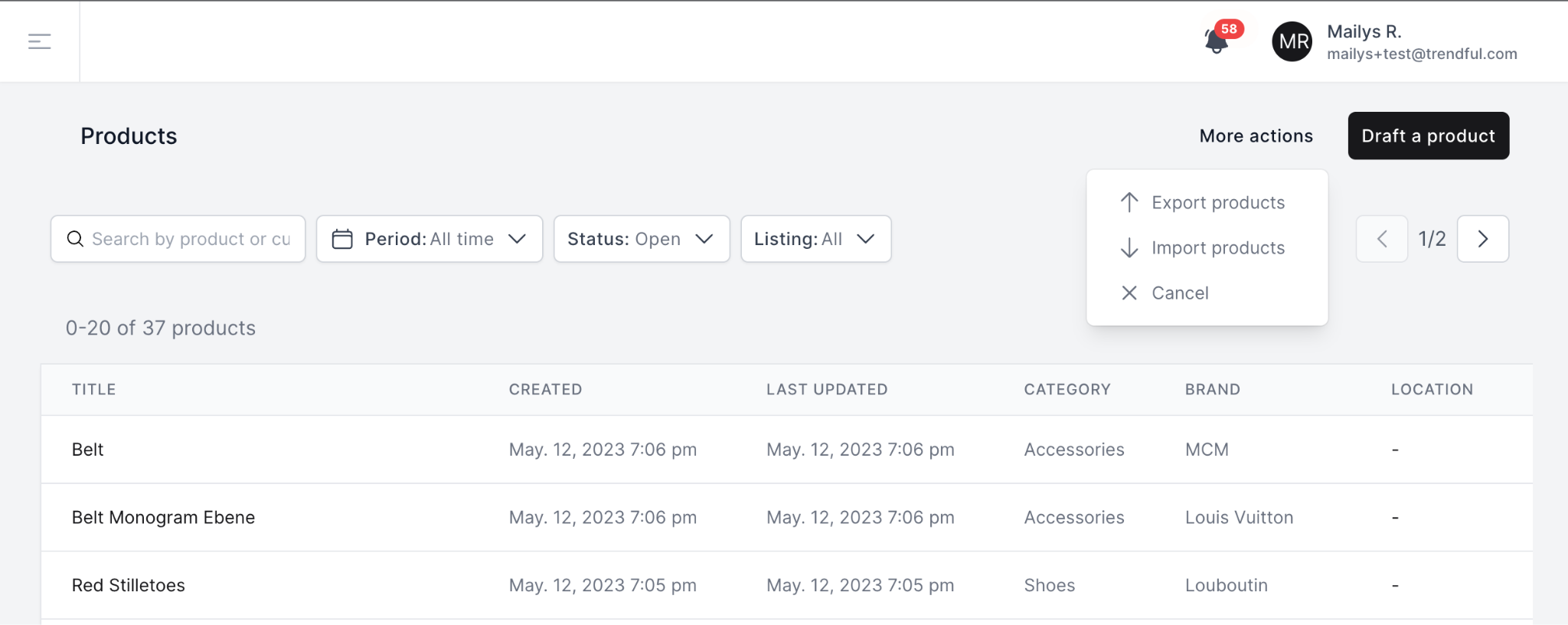
To initiate the product import process, you can follow these steps: On the Inventory page, click on "More actions" and then select "Import products".
 Choose the desired CSV file for import. Next, you will need to map the columns in your CSV file to their corresponding Inventory fields. If a value is invalid or a column has already been assigned, an error message will be displayed. You must assign or skip all columns before proceeding with the import.
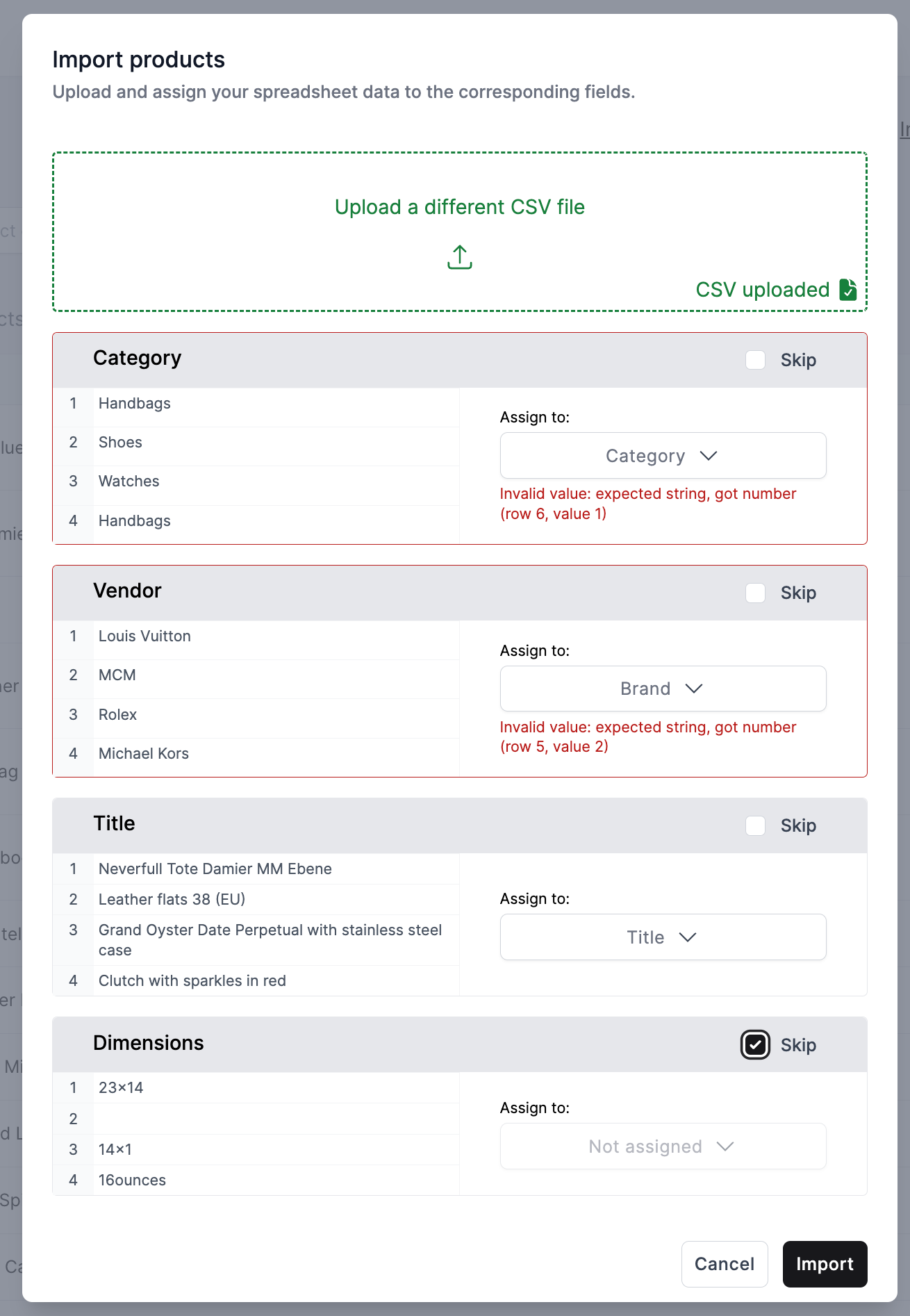 For instance, you can only import products that meet the following conditions:
- "Excellent" or "A"
- "Great" or "B"
- "Good" or "C"
- "Fair" or "D"
Therefore, it is important to reformat your CSV import accordingly to adhere to our import requirements. Additionally, you have the option to import images as URLs. However, if a URL does not lead to a valid image, we will be unable to download it. Image URLs should be separated by commas.
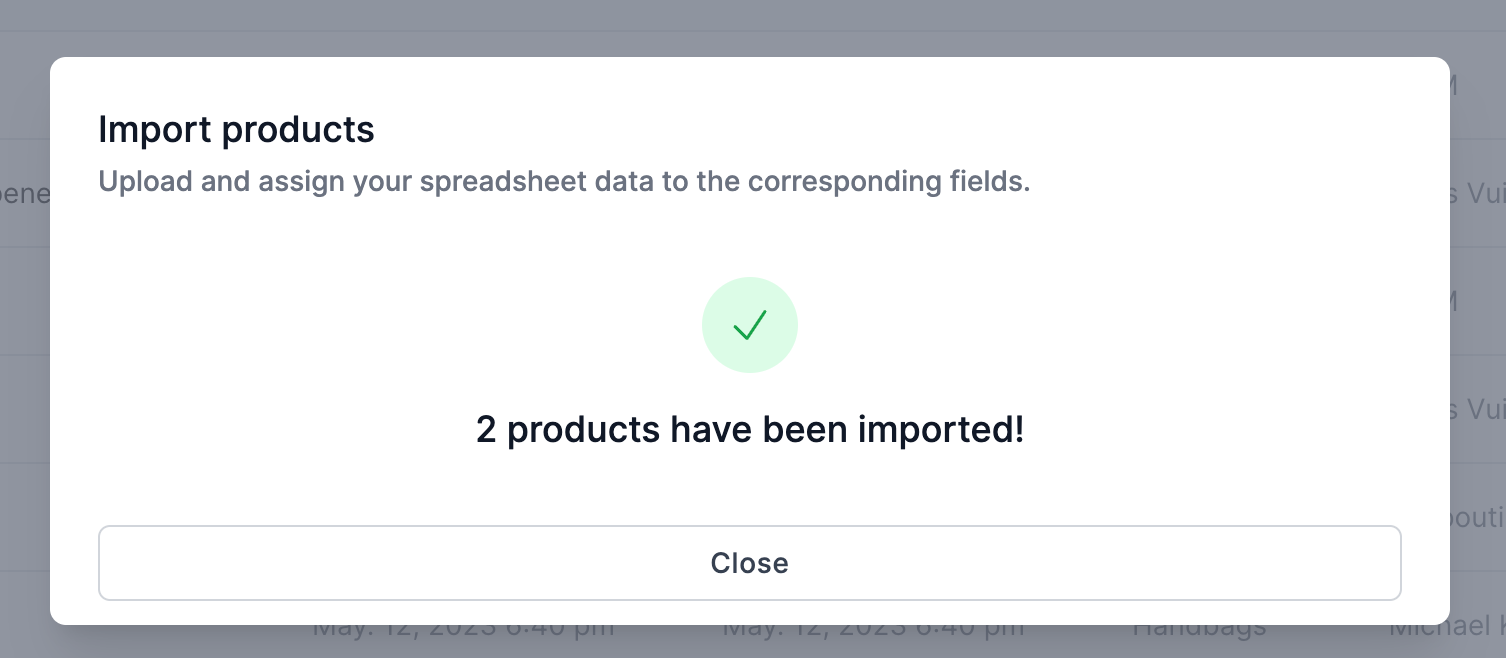
Once you have assigned or skipped all columns, you can proceed by clicking on the import button. In case you are importing images, the process might take a few minutes.
More about Inventory Management System
Still stuck? Get in touch or browse all 144 answers.