How do I reject an item?
There are two ways in which you can reject an item within your admin account.
The first way to reject an item — you will most likely use this scenario if you want to reject an item before you even send a quote to a customer.
- Simply scroll down on an offer to the quote section, in this case there will not be any active quotes and you can simply click the button in red “Reject item”
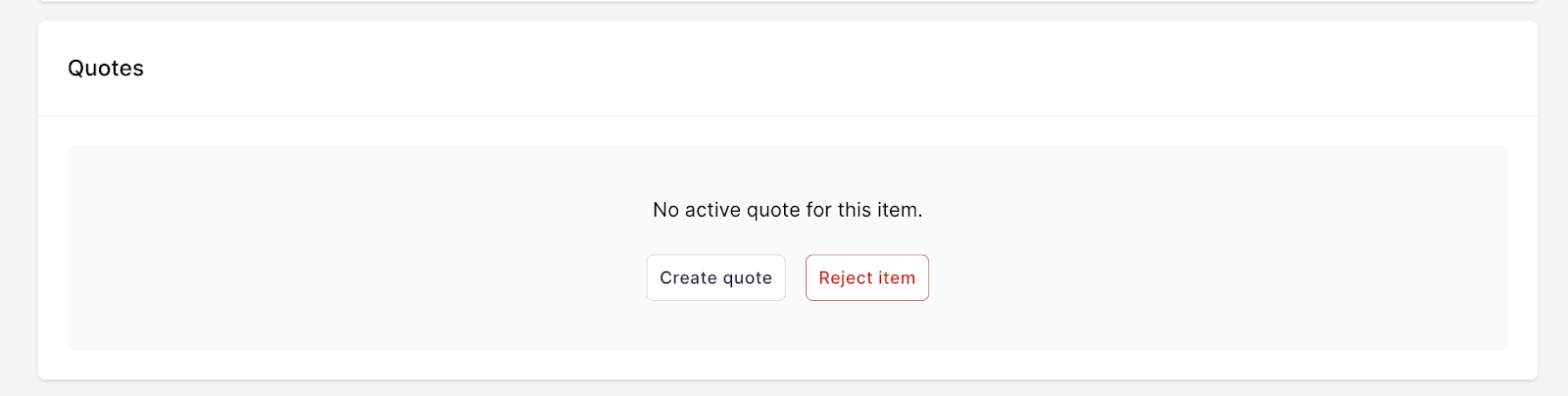
- In this scenario when you click “Reject item” an automatic reject item email is sent to your customer (see image example below) and the quote will be marked as rejected
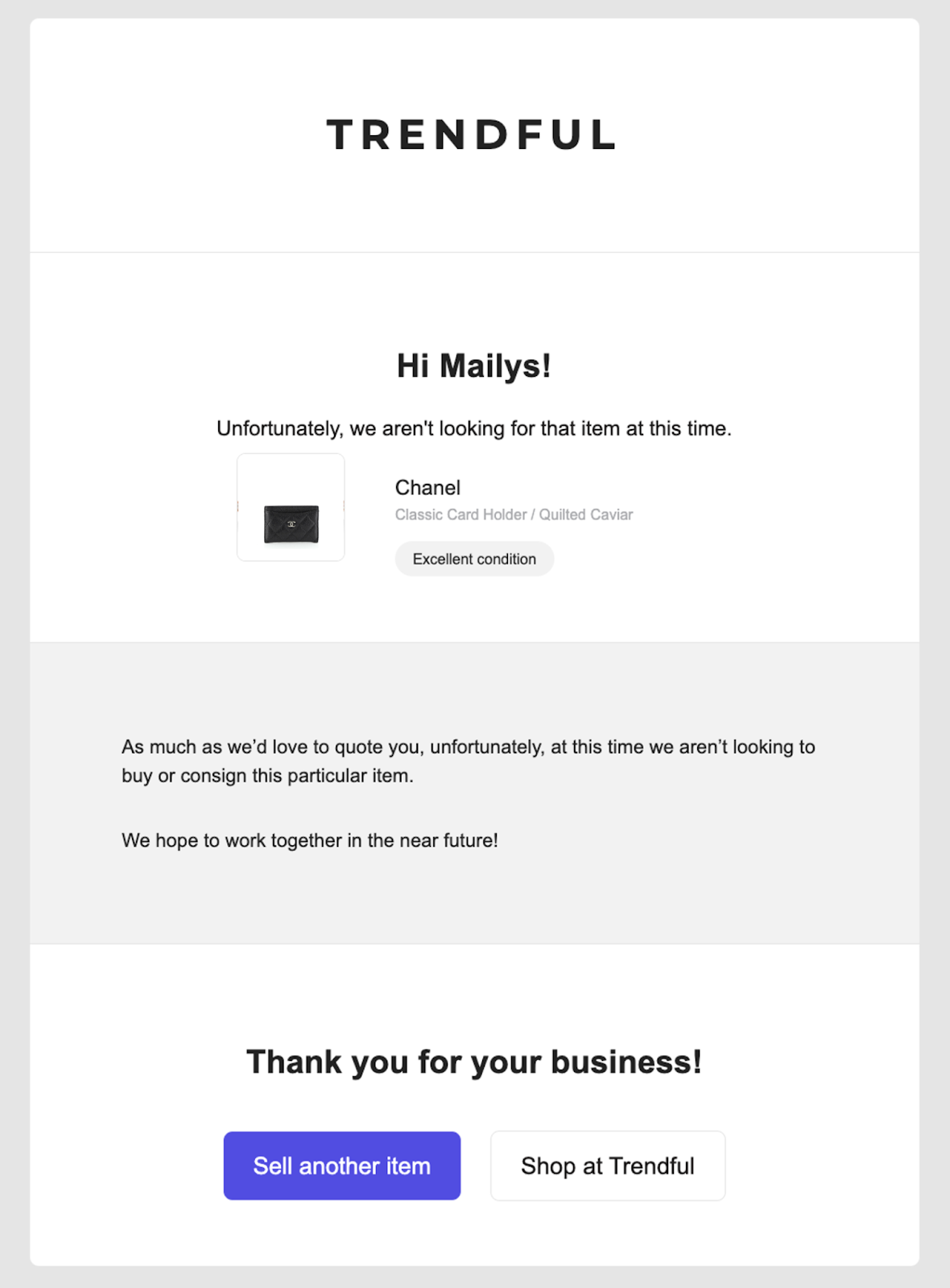
The second way to reject an item — in this scenario you most likely have already received the item to your location and do not want to end up accepting it, this could be based on condition, authenticity, inventory levels, etc. In this case you can still reject the item.
-
To reject an item after receiving it, simply click on the offer from your offer overview page.
-
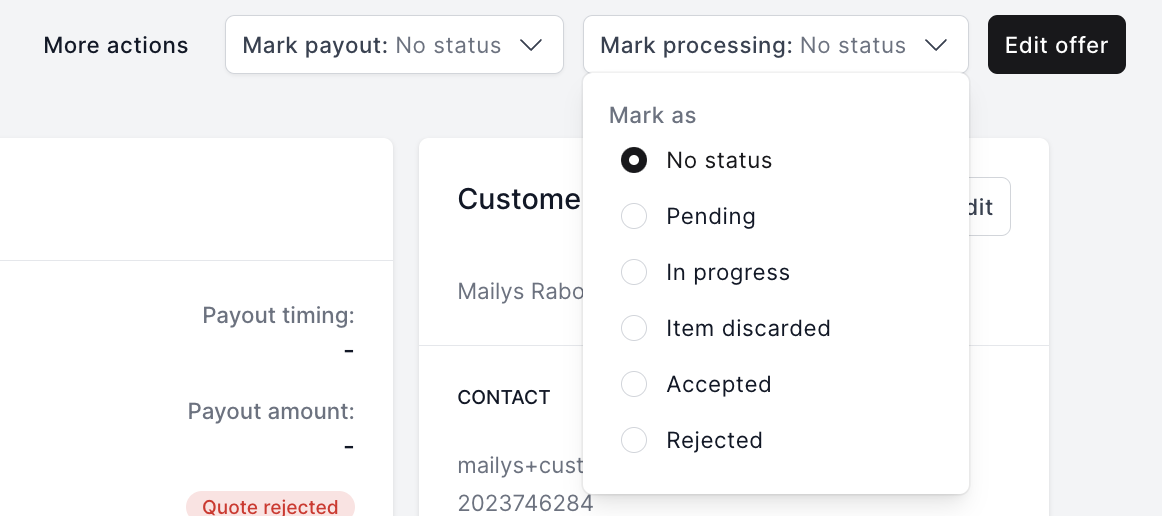
Once you have click into the offer, select the “Mark processing” dropdown menu in order to change the processing status of the item (See the image example below)
-
When you click “Rejected” no automatic email will be sent to your customer, you can instead notify them via email that the item has been rejected based on whatever may be the case (i.e. condition, authenticity, inventory levels, etc).
-
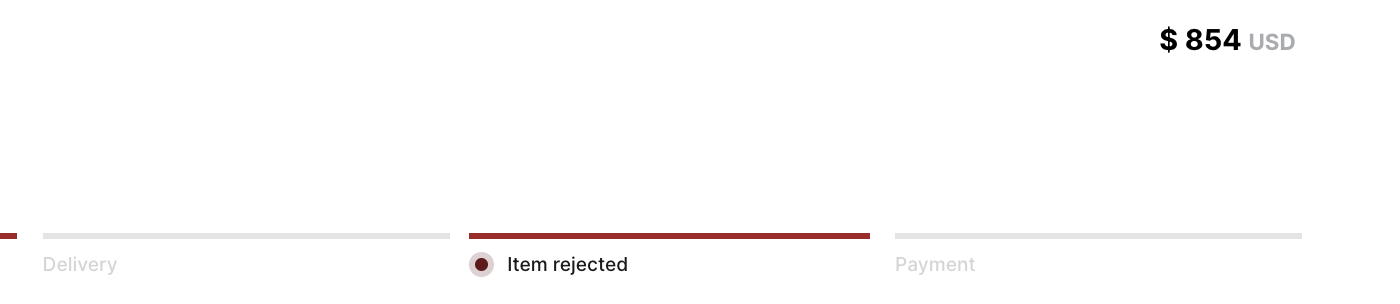
If your customer were to log into their resale app account they would see the following status change to their offer reflected in red (see the image example below).
More about Offer Management System
Still stuck? Get in touch or browse all 144 answers.