How to automate payouts
Introduction
Paying customers quickly is one of the best ways to earn their trust and their next item. Trendful Payouts lets you pay for the items you buy or consign from your Trendful Admin, in a few clicks, without ever asking a customer for their bank details over email.
Your customers add how they want to be paid, either in your Resale app or from the link in their payout email. You choose when to pay. For bank transfers, PayPal and Venmo, Trendful takes care of the rest: verifying bank accounts, sending the money, tracking it until it arrives and keeping a statement of what you sent.
Want to see it first? Book a demo.
Why merchants use Trendful Payouts
- No more collecting bank details by hand. Customers connect their own bank account securely with Plaid, or add their PayPal or Venmo details, in My account in your Resale app (Pro and Enterprise) or from the link in their payout email. Nothing sensitive goes through your inbox.
- Pay before they are ready. You can start a payout before a customer has added their details. Trendful emails them, holds the payout, and sends it on its own as soon as they finish. A bank transfer also needs enough in your wallet to cover it.
- Verified before it is sent. A bank account is confirmed before any money moves. If a customer entered their numbers by hand, a small deposit proves the account is theirs first, and we remind them if they have not come back to finish.
- Fast. Once sent, bank transfers arrive within 12 business hours on average, usually by the next business day, and always within 1 to 4 business days.
- Tracked until it arrives. Every bank transfer, PayPal and Venmo payout shows whether it is started, sent or succeeded, for you in your admin. On Pro and Enterprise, your customers can follow theirs in My payouts in your Resale app. If a bank transfer fails or is returned, Trendful emails the customer and your team.
- No reconciliation. Payouts are tied to the offers they pay for, so your statement already shows who was paid, for which items, how much and when. Export it whenever you need it.
- Commitment before acceptance. You can require customers to add their payout details before they accept a cash offer, a simple way for them to show good faith.
Ways to pay your customers
Sent by Trendful
- Bank transfer (ACH): paid from your Trendful Wallet, which you fund from your business bank account. Available for US businesses.
- PayPal and Venmo: paid from your own PayPal Business account once it is connected. See How to send PayPal and Venmo payouts. Venmo is for US recipients only.
Paid by you, recorded in Trendful
- Zelle, check, or a bank transfer from your own bank: customers can add their Zelle details, but Trendful does not send or track any of these payments. You send the money yourself, outside Trendful, then mark the offer as paid so its status and activity stay up to date.
On Pro and Enterprise, you choose which methods customers can pick in your Resale app, in Settings → Preferences → Payouts.
Fees
| Launch and Pro | Enterprise | |
|---|---|---|
| Bank transfer (ACH) | 1.8% per payout | 1% per payout, capped at $15 |
| PayPal and Venmo | 0.5% per payout, capped at $10 | 0.5% per payout, capped at $5 |
| Zelle, check, own bank transfer | No Trendful fee | No Trendful fee |
The fee is shown in the payout window before you send, so there are no surprises. PayPal also charges its own fee on PayPal and Venmo payouts, and a single PayPal or Venmo payout can be up to $10,000.
Pay one item or several at once
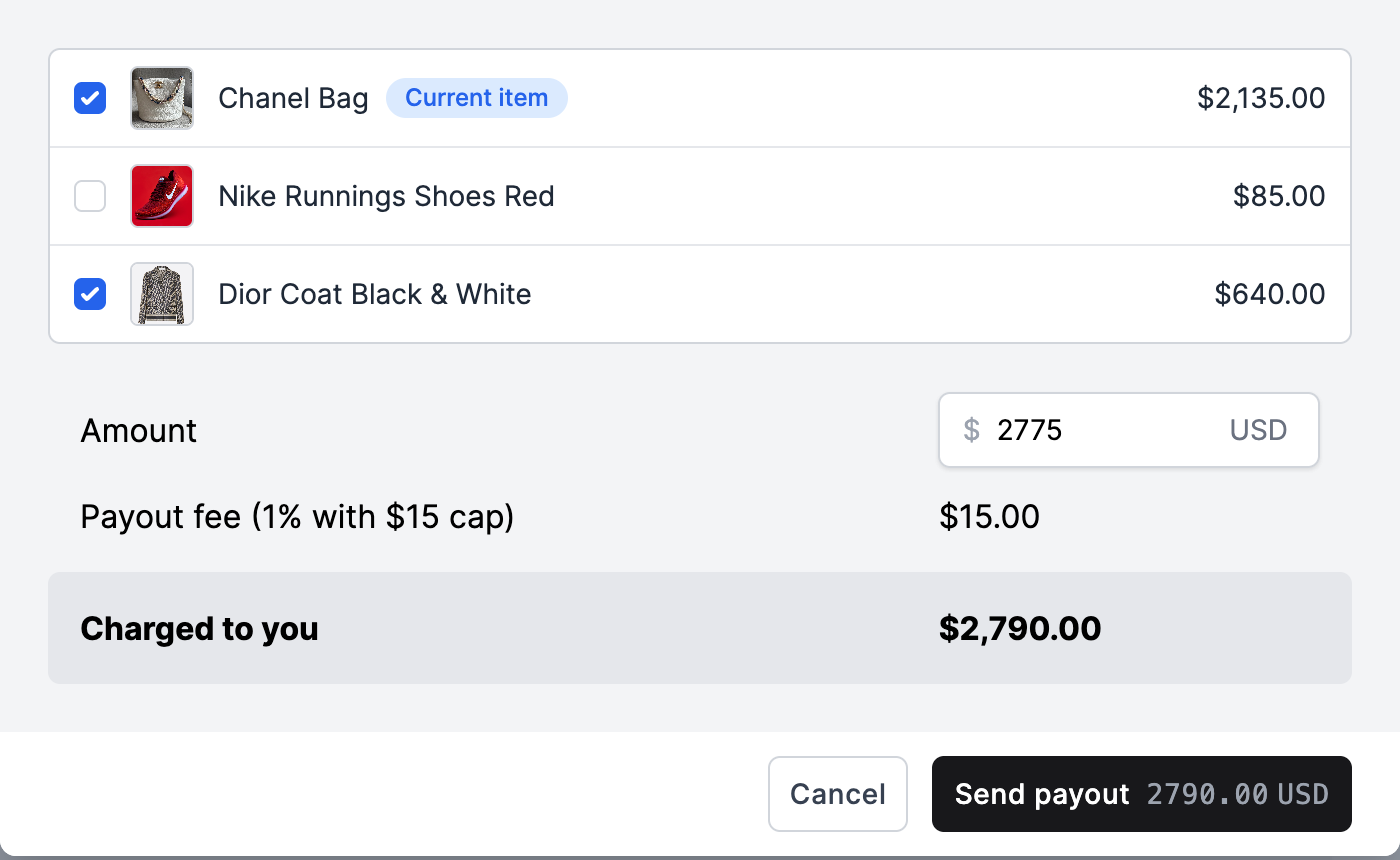
Open an offer, go to the Payouts section and click Create payout. The amount starts at the total of the items you are paying, and you can still edit it before sending. Any deductions come off separately.
If the same customer has other accepted items waiting to be paid, you can add them to the same payout, just like you add items to a shipment. To pay many customers by bank transfer at once, select their offers on the Offers page and use Send payouts.
Read more in Can I pay several items in one payout?
Always know what you need
Settings → Payout wallet shows where your money stands at a glance:
- Available to send: what you can pay out right now.
- Reserved for payouts waiting to send: bank transfers you started that have not gone out yet, fees included. If your available balance goes below zero, top up your wallet: a payout goes out once the customer's details are ready and your wallet covers it.
- Low balance alert: pick an amount and we email you when your available balance falls below it, so you can top up before a payout is held up.
- Statement: every payout for the month, with totals for started, sent and succeeded payouts. Export it whenever you need it.
Payouts due and payout schedules
Enterprise early access
Tell Trendful when you pay, and Trendful tells you who is due.
In Settings → Preferences → Payouts → Payout schedule, set your own rules, for example:
- Buyouts within 7 business days of accepting the item, or of its tracked delivery.
- Consignments within 15 days after the sale.
- Or a fixed pay day each month, with a cutoff time in your time zone.
The Due view of your payout wallet then lists the payouts coming up and overdue, grouped by customer, with their items, the amount and the due date. Open a payout from there to review and send it.
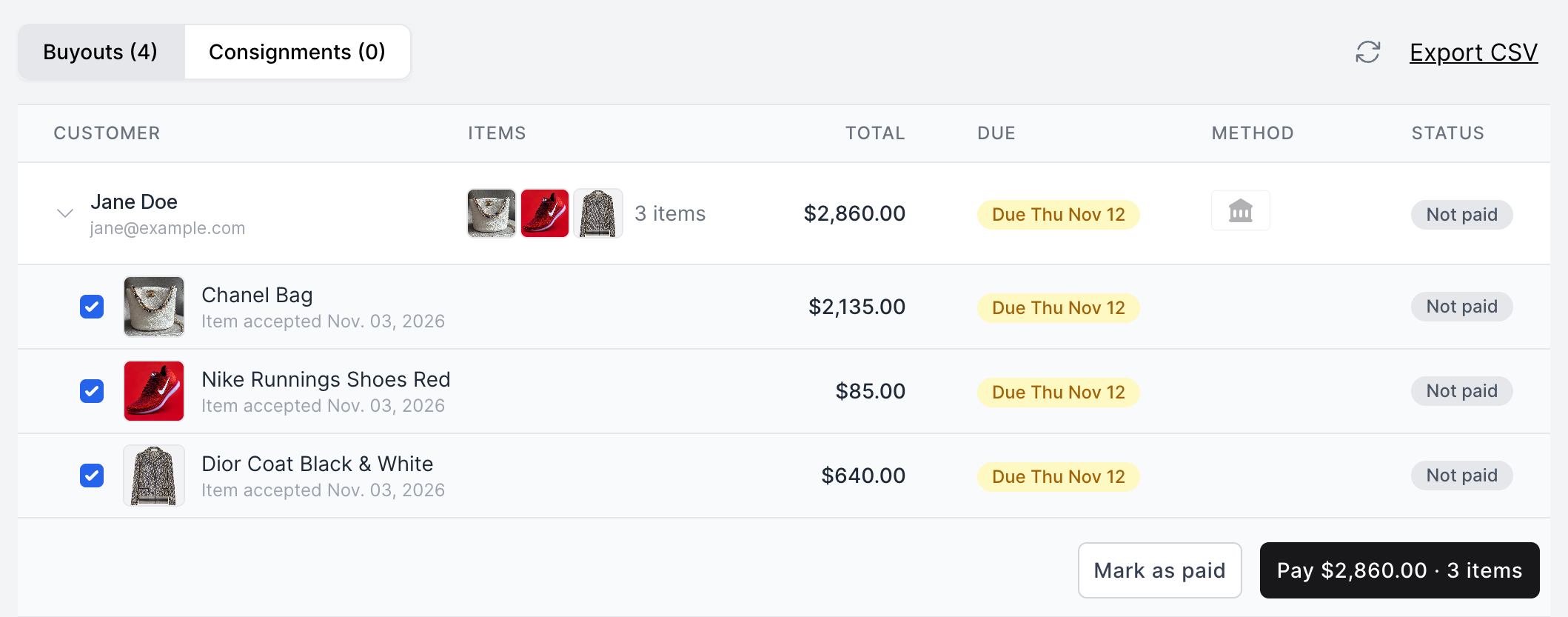
On the Offers page, the Buyout or Consignment label turns amber when a payout is coming due and red when it is overdue. Hover it to see why and when, and jump straight to your payouts due.
You also get a short email around 9 AM in your time zone listing what is overdue, due today and coming up, with a warning if your balance will not cover it. It arrives on business days when there is something to pay, or ahead of a monthly pay day with enough time to top up.
Payout schedules are in early access for Enterprise merchants. Talk to us to turn them on.
Require payout details before customers accept
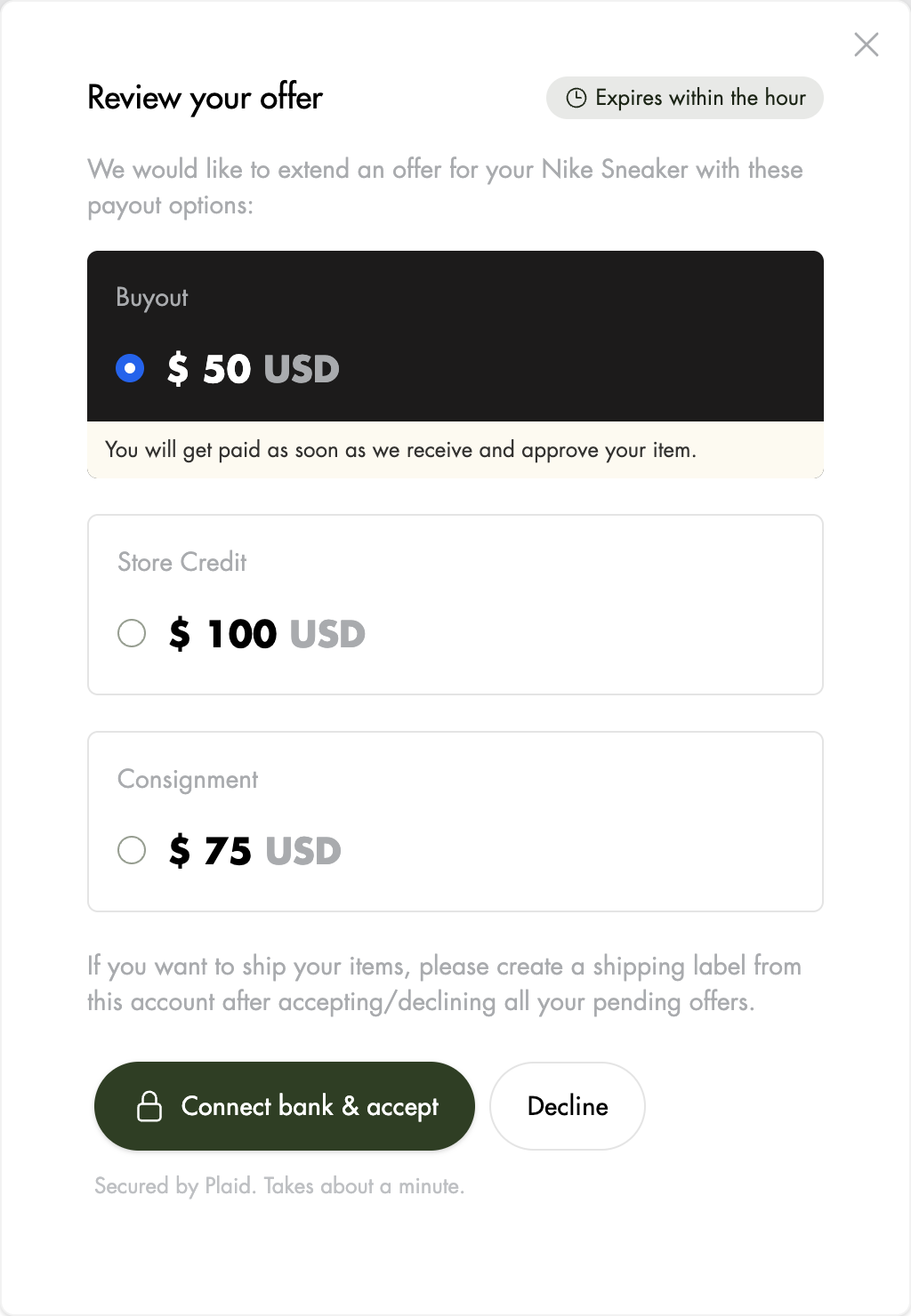
In Settings → Preferences → Payouts, turn on Require a payout method before customers accept a cash offer (Pro and Enterprise).
Customers who have not added their details yet see a button that sets them up and accepts the offer in one go, such as Connect bank & accept or Add PayPal & accept. It is a simple way to ask for good faith: customers commit to being paid before they accept, so fewer payouts are held up waiting on them. Store credit offers are not affected.
A bank account is only required when Trendful sends your bank transfers. If you pay by bank transfer yourself, customers add one of your other payout methods instead, or accept as usual if bank transfer is your only method.
Read more in Can I require customers to add their payout details before they accept an offer?
Stay in control
- Expiration: a payout waiting on a customer expires after 30 days by default. You can shorten that in Settings → Preferences → Payouts, and cancel a waiting payout yourself from the offer.
- Deductions: turn on deductions such as shipping labels, and they come off the payout when it is created. See How do payout deductions work?
How to get started
- Set up and fund your Trendful Wallet for bank transfers, or connect PayPal for PayPal and Venmo.
- On Pro and Enterprise, choose the payout methods your customers can pick in Settings → Preferences → Payouts.
- Send your first payout from an offer.
Have questions, or want to see payout schedules on your own data? Book a demo.