October updates: know what you owe and when, and pay several items at once

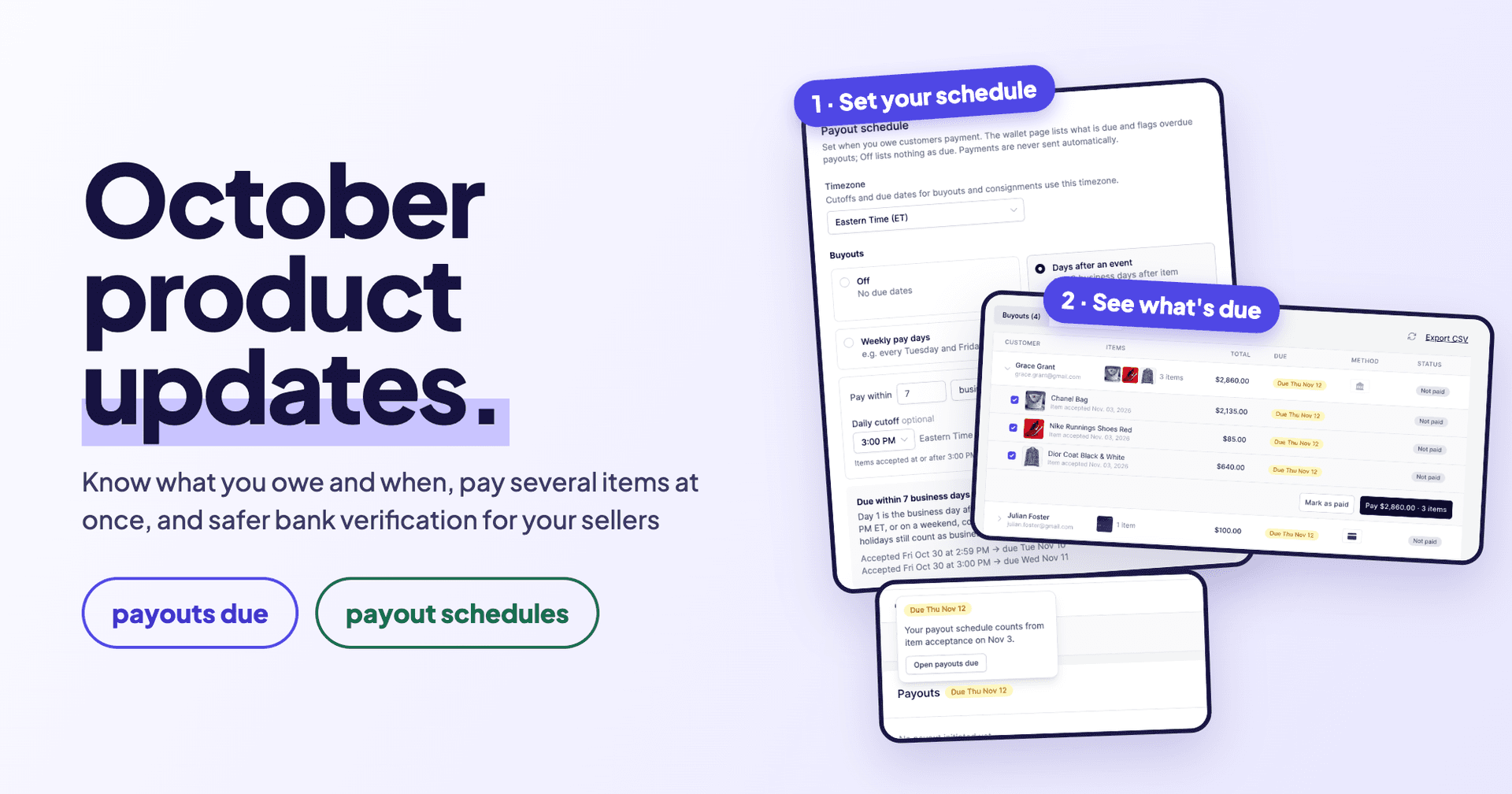
October was mostly about payouts. Paying customers on time is one of the things that makes them come back with their next item, and until now keeping track of who you owe, and by when, happened in a spreadsheet or in someone's head. This post covers the October changes that matter to most merchants, plus a few payout features that landed in the first days of November because they belong together.
Three themes this time: you know what you owe and when it is due, paying is faster, and your sellers get a safer way to connect their bank.
Payout schedules: decide when a payout is due
You probably already have a rule, like "buyouts are paid within 7 business days of accepting the item" or "consignments are paid on the 15th and the last day of the month". Now you can write it down in Trendful, and every accepted offer gets a due date from it.
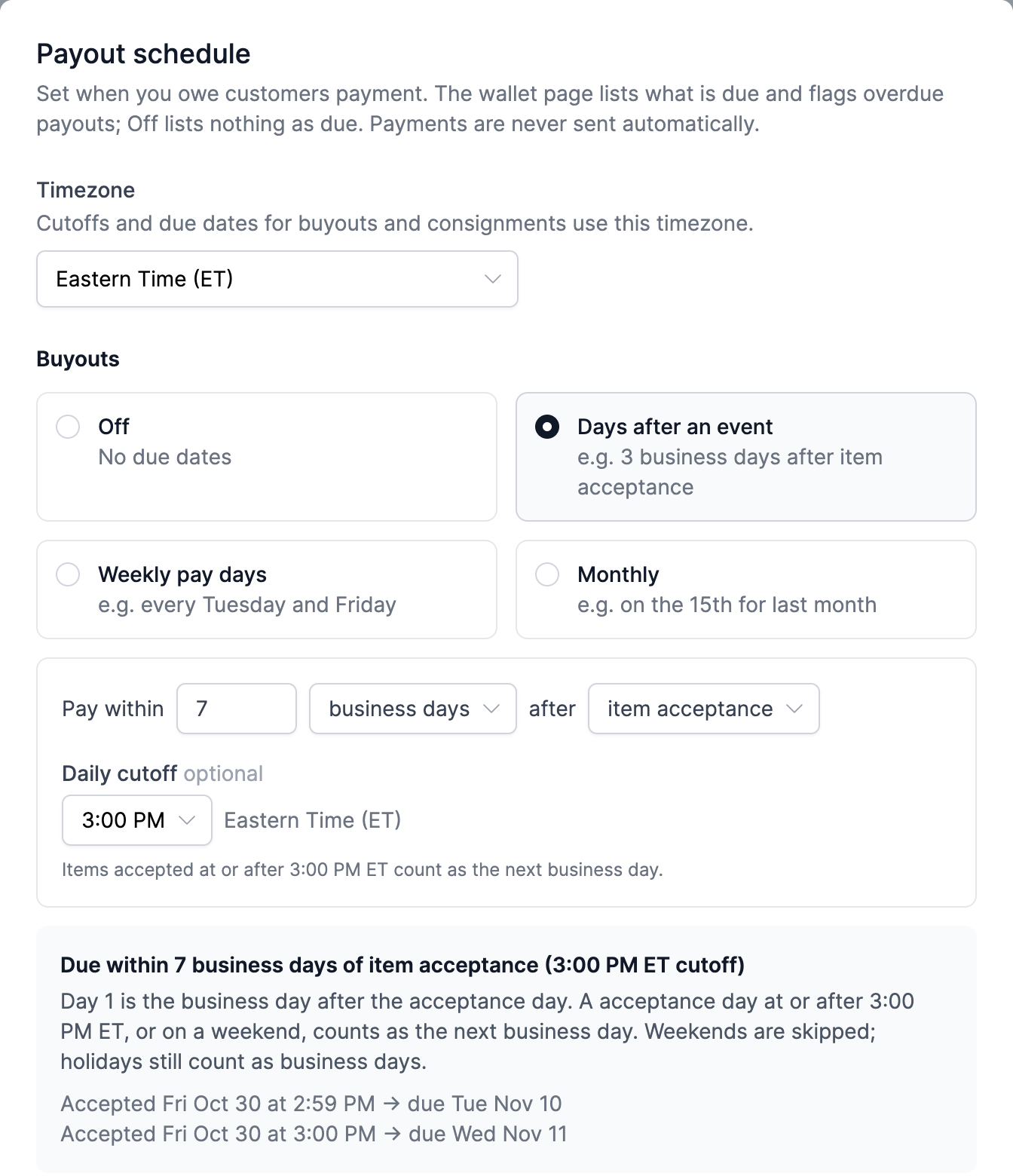
Go to Settings > Preferences > Payout and edit Payout schedule. Buyouts and consignments each get their own rule:
- Days after an event: pay within a number of days after delivery, item acceptance or the sale. Delivery dates come from carrier scans, so a package counts as delivered only when the carrier says so.
- Weekly pay days: for example every Tuesday and Friday.
- Monthly: for example on the 15th for everything from the previous month.
You choose business or calendar days, an optional daily cutoff (items accepted after 3 PM count as the next day) and the timezone the dates follow. A preview shows real examples, so you can check the rule does what you mean before saving it. Schedules go up to 30 days. Setting a schedule never sends a payment on its own: it tells you when a payout is due, and you decide when to pay.
Payout schedules are in Enterprise early access.
Payouts due: one list of everything you owe
Settings > Wallet has a new Due view. It lists the accepted offers you still owe customers for, grouped by customer, with the earliest due date first. Two cards at the top show what is overdue and what is due in the next 7 days.
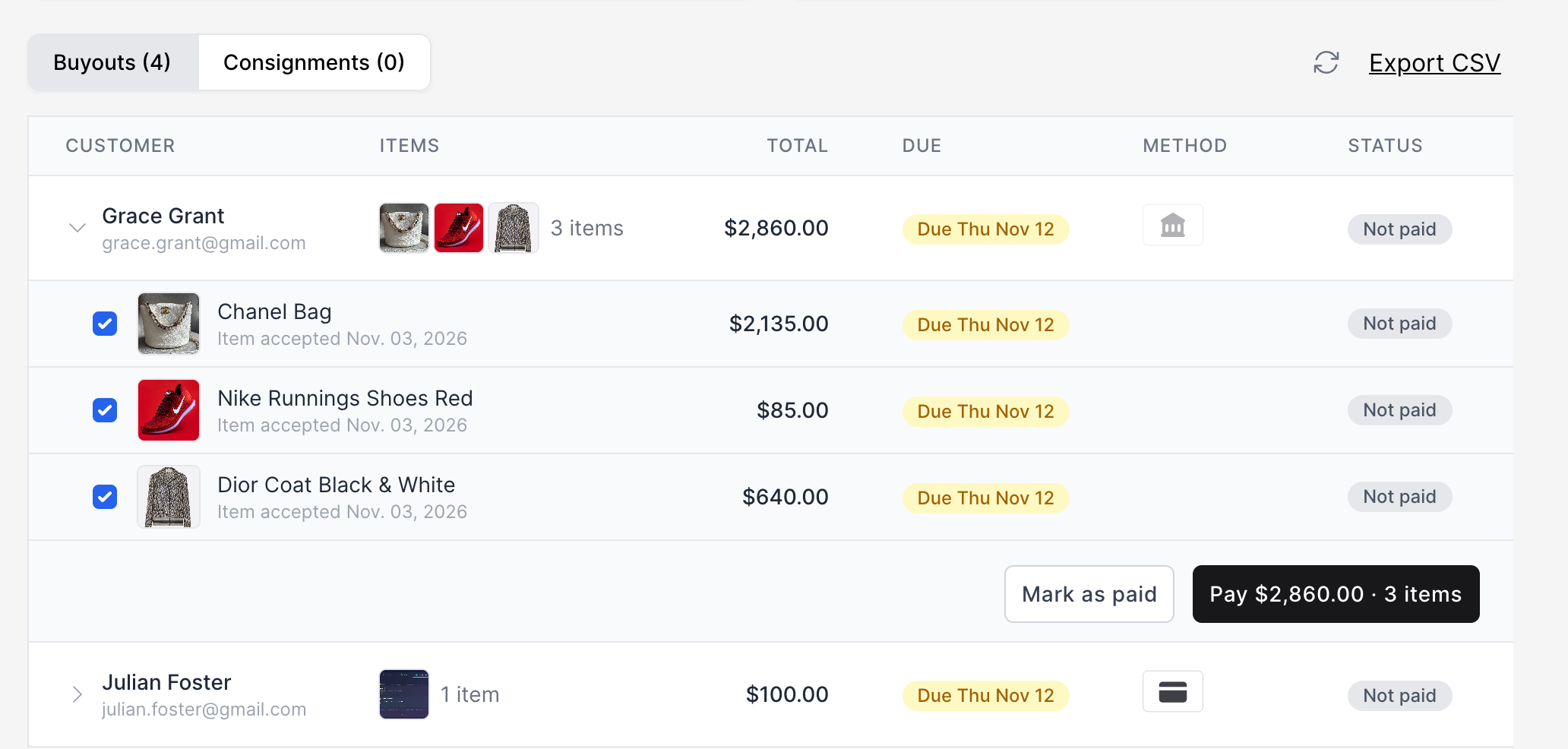
From there you can:
- Open a customer to see each item they are owed and when it is due.
- Pay the items you tick in one payout, or Mark as paid if you paid them another way, like a check or Zelle.
- Export CSV to share with your accountant or reconcile against your books.
Like payout schedules, Payouts due is in Enterprise early access, and team members need wallet access to see it.
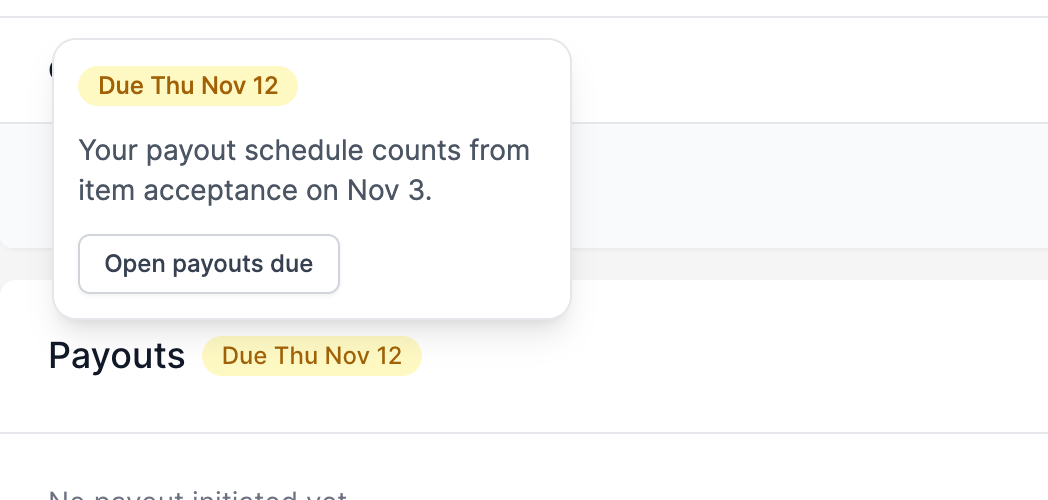
The same due dates show up where you already work. On the Offers list, the Buyout or Consignment pill turns amber when a payout has a due date and red once it is overdue. On an offer, hover over the due date to see what the schedule counted from, with a shortcut to Payouts due.
Pay several items at once, or one at a time
Customers often sell you more than one item, and paying them one transfer per item meant more clicks for you and more emails in their inbox.
Now, when you click Create payout on an offer, the customer's other unpaid items from the last 90 days are listed underneath. The item you are on is always included, and you tick whichever others you want to pay in the same payout. Paying in bulk or item by item both work, so you can pay everything a customer is owed in one transfer or keep paying each item as it is ready. The amount stays editable if you need to adjust it.
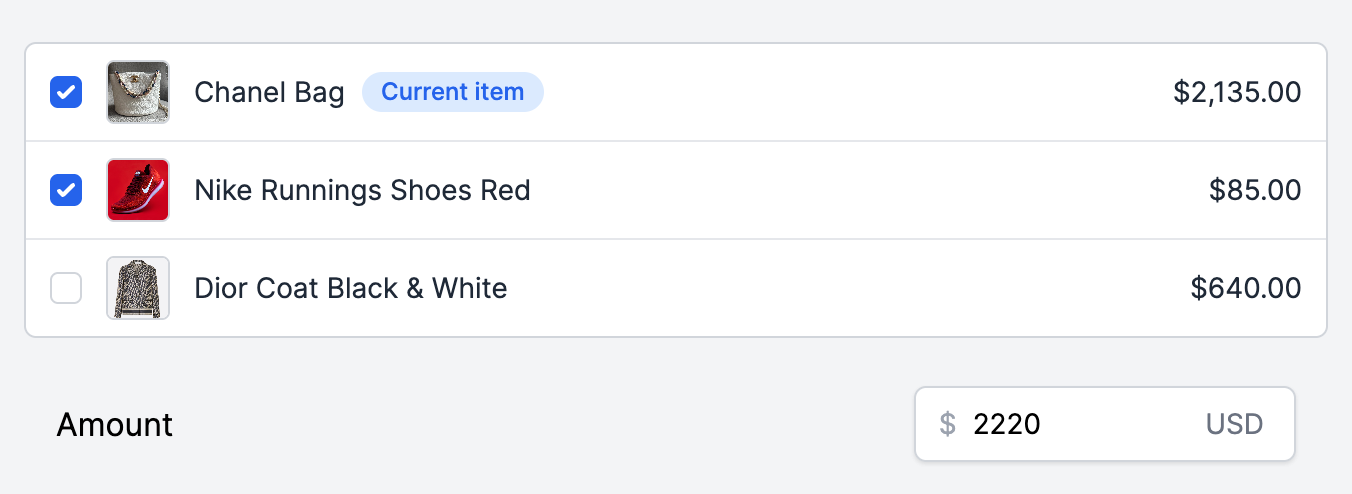
For a step-by-step guide, see Can I pay several items in one payout?
Wallet notices: no surprises on pay day
Paying on time also means having the money in your wallet when the payouts are due. For US Trendful wallets, three notices now help with that:
- A payout digest listing the payouts coming up, early enough to fund your wallet in time (5 business days ahead of a fixed pay day). It goes to the owner and team members with wallet access, and each of them can turn it off.
- A low balance alert when your available balance drops below an amount you choose on the wallet page.
- A shortfall warning when your wallet will not cover the payouts due in the next 5 business days, even if you have not set an alert.
Safer bank verification for your sellers
When a seller connects their bank to receive payouts, the quickest way is still to log in to their bank through Plaid. Some sellers cannot, or would rather not. They can now enter their account details by hand and verify them with micro-deposits, which makes bank verification more secure and helps make sure payouts reach the right account without errors.
Here is how it works for the seller:
- They choose to connect manually and enter their account and routing numbers.
- A small deposit arrives in their account within 1 to 2 business days.
- They enter the 3-letter code from the deposit's description to confirm the account.
If a seller has not finished after 3 days, we email them a reminder, so you do not have to chase anyone. Bank transfers to that account wait until it is verified. Micro-deposits work with US bank accounts. For the steps your sellers follow, see How do my customers connect their bank account to receive payouts?
Your terms and conditions stay up to date
Until now, customers accepted your terms once, when they signed up. If you changed your terms later, nothing asked them to agree again.
Now, if you have terms set up, every submission in the resale app shows a short note under the submit button: by submitting, the customer agrees to your current terms and conditions, with a link to read them. Each successful submission records a new acceptance date, and the customer's profile shows the most recent one. So when you update your terms, customers agree to the new version the next time they submit an item.
Contract links are also more forgiving: Google Drive links are now accepted, and we check the link when you save it: one that is clearly not shared publicly is blocked until it is, so your customers do not land on a page they cannot open. More in How do my customers accept my Terms & Conditions?
The rest of October
Choose which countries you accept. If you only buy from sellers in certain countries, set them in Settings > Preferences > Offers > Accepted countries. Together with Require shipping address (in the Shipping tab), sellers outside those countries are stopped when they submit, in the resale app and the guest sell form, instead of at the shipping step. Leave it empty to keep accepting every country.

Customer tags on offers. Tags you give customers, like "VIP" or "high value", now appear next to the customer on the Offers list. Click a tag to filter offers by it, or tag several customers at once from the Offers or Customers list.
No printer needed. For USPS and domestic Canada Post labels, customers can show a QR code at the counter instead of printing the label. It appears in the resale app and in the label email.
Automatic deductions on every plan. Deducting the shipping label or insurance cost from payouts is now available on every plan. When a customer adds insurance to their shipment and you deduct it from payouts, the resale app says so upfront, so the deduction is never a surprise.
What is next
Two big things are coming in November. First, a new shipping insurance provider with reduced rates, so protecting your packages costs you and your customers less. Second, an integration that automates the authentication process, so items can be authenticated without the back and forth. As always, if something in your day is slower than it should be, message us in the app. Most of what shipped this month started as a merchant telling us exactly that.
Keep reading
- September updates, part two: photo recognition for handbags, and every offer shows its deadline
Customers listing a handbag in your resale app can now start with a photo and pick their bag from ranked matches. Offers and shipping…
- September updates, part one: you decide what customers can submit, and offers get answered faster
Curate the categories and brands you accept, including ones our catalog does not carry, set condition and photo guidance per category…
- Introducing the sell form on Launch: intake without a website
Launch plan merchants can share a link to a custom sell form so customers submit items without needing the merchant’s site. Submissions…